The daily fill on the dock iPad
This is the screen the business runs on. One iPad at the fill dock, shared by everyone, no per-person login to babysit. A truck pulls in, somebody reads the dipsticks, taps four things and the record keeps itself.
Put it on the home screen first
- On the iPad, open your workspace in Safari. The address is your company name followed by .tanktracker.ca.
- Sign in once.
- Tap Share, then Add to Home Screen.
- Open it from the home screen from then on.
Do this before the season starts. A home-screen install opens full screen with no browser furniture for wet gloves to miss, and iOS treats its stored data far more generously than a tab, which matters when the iPad sits in a drawer over the winter.
Logging a truck
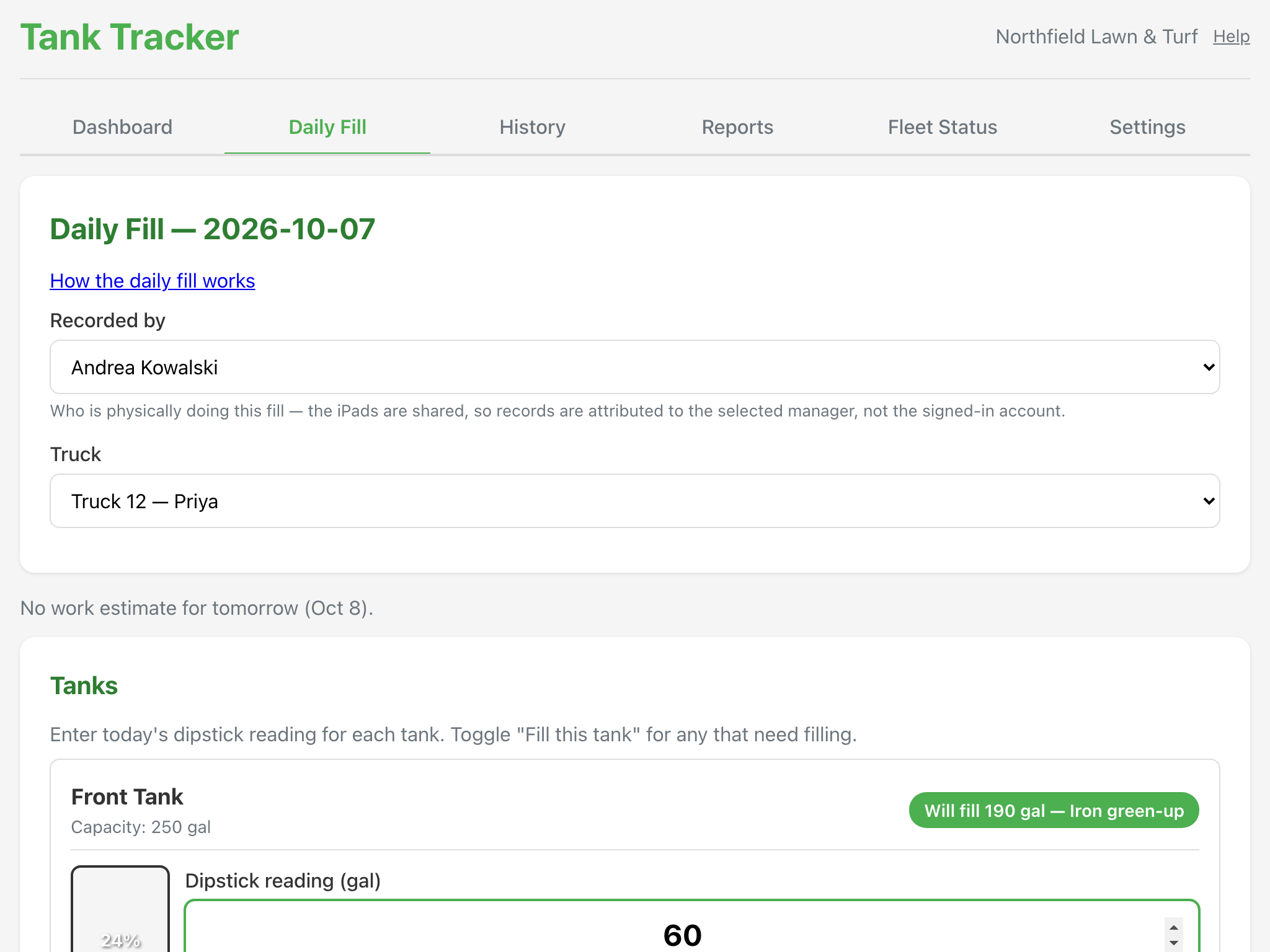
Open the Daily Fill tab. The heading carries today's date, so the first thing anyone sees is which day they are filing under.
- Recorded by. Pick the person physically doing the fill. The iPad is shared, so records are attributed to the name chosen here and not to whoever happens to be signed in. The picker remembers the last choice.
- Truck. The list is grouped: trucks not yet checked in today first, trucks already done underneath. If a driver is set on the truck, the name is shown beside the number.
- Dipstick reading for each tank, in gallons. As soon as a reading goes in, the gauge moves and the line underneath updates to Fill needed, which is the tank's capacity less the reading.
- Mix in this tank. Pick the mix going in. The components appear with the amount of each product for the gallons being loaded.
- Save Daily Fill. The bar at the bottom shows a one-line summary of exactly what is about to be recorded, so there is a last chance to catch a wrong truck.
Fill this tank, or log only
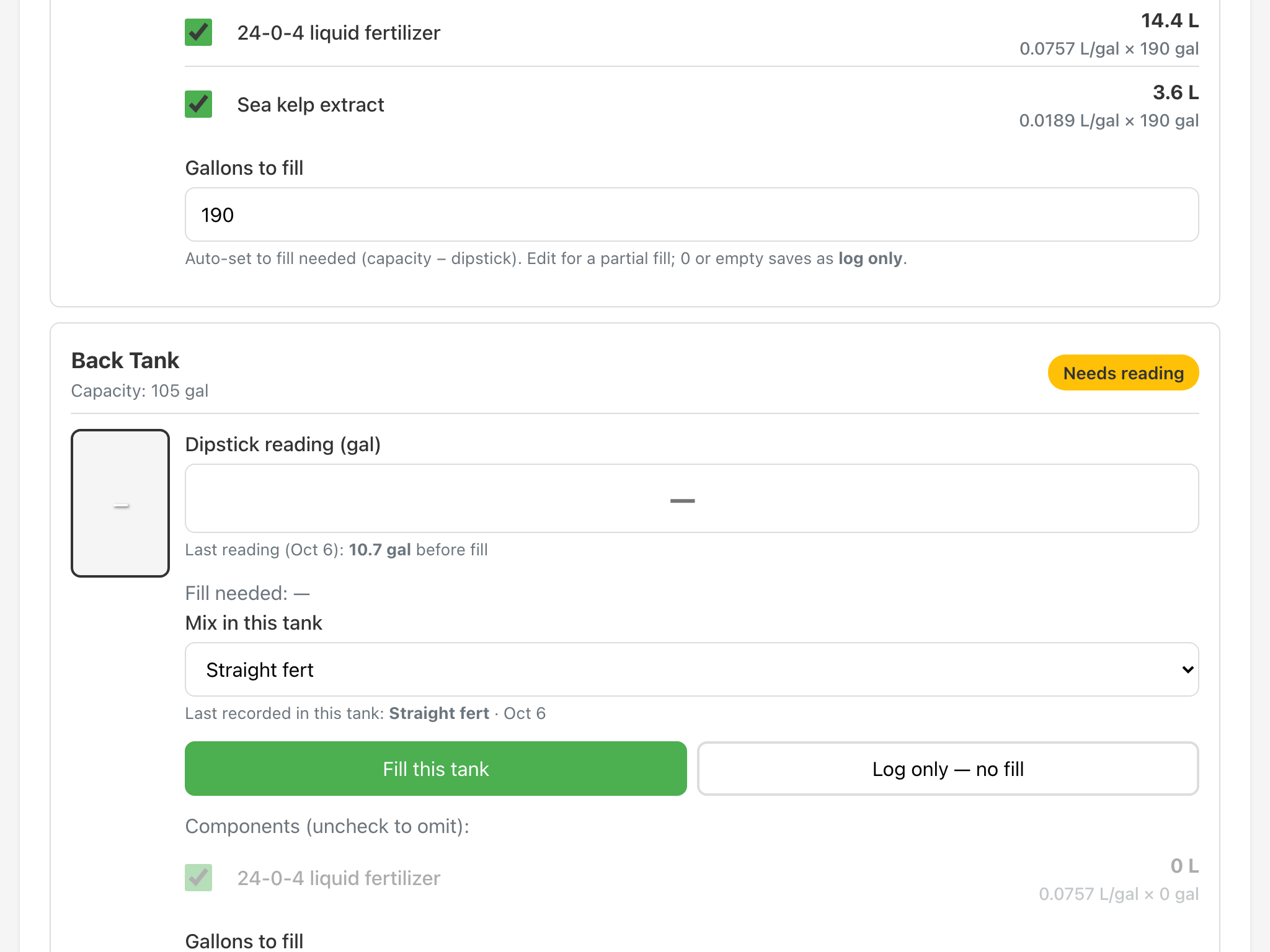
Each tank panel has two buttons. Fill this tank records a fill and shows the components. The second button logs the reading and the mix that is in the tank without adding anything, which is what you want for a truck that comes back with product still in it.
Both are worth recording. A reading with no fill is how the reports know a truck was looked at, and it is what makes the next day's usage figure mean something.
Partial fills
Gallons to fill starts at the fill needed figure, which is the common case: top it up. Type over it for a partial fill and the component amounts recalculate as you type. Set it to 0, or empty it, and the panel saves as log only instead; the panel says so before you save.
Leaving a product out
Under Components each product in the mix has a tick. Untick one that is not going in today and the record shows it as omitted, with the remaining amounts recalculated. The last ticked product cannot be unticked.
Straight on to the next truck
After a save the screen confirms what was recorded and offers the next truck that has not been logged today, named on the button, plus a count of how many are left.
Fixing a mistake
Records are not edited and not deleted. They are voided, with a reason of at least five characters, from the History tab: find the row, tap it, press Void with reason. A voided record drops out of every total and stays visible in History with who voided it, when and why. Tick Include voided in the History filters to see them.
If the void was itself the mistake, record the fill again. Voiding cannot be undone.
Filed under the wrong day
The screen captures today's date when it loads. If the iPad has been sitting open across midnight, a banner appears telling you the date has moved on and offering Refresh. The save itself always uses the real current date, so even an ignored banner cannot file a fill under yesterday.
When the dock has no signal
Keep working. Fills save on the iPad the moment they are logged and go up to your workspace when there is a connection again. The save confirmation tells you the fill is waiting to sync, and the sync indicator at the top counts how many saves are still queued. The reports are built from what has reached the server, so an afternoon of offline fills shows up as soon as the iPad finds Wi-Fi.
Two habits make this reliable. Install it on the home screen, as above. And on the last day of the season, open Tank Tracker on every iPad while it is on Wi-Fi and wait until the sync line says it is up to date with nothing queued, before the iPad goes in the drawer. If a device has queued work and has not synced for two weeks, the app puts a banner up asking for exactly that.