Team, invites and tech access
Tank Tracker divides your people in two. Managers have accounts: they set the fleet up, record fills, read the reports and change settings. Technicians have no accounts at all: they get a read-only page that shows what is in every truck. There is no per-user charge either way.
Inviting a manager
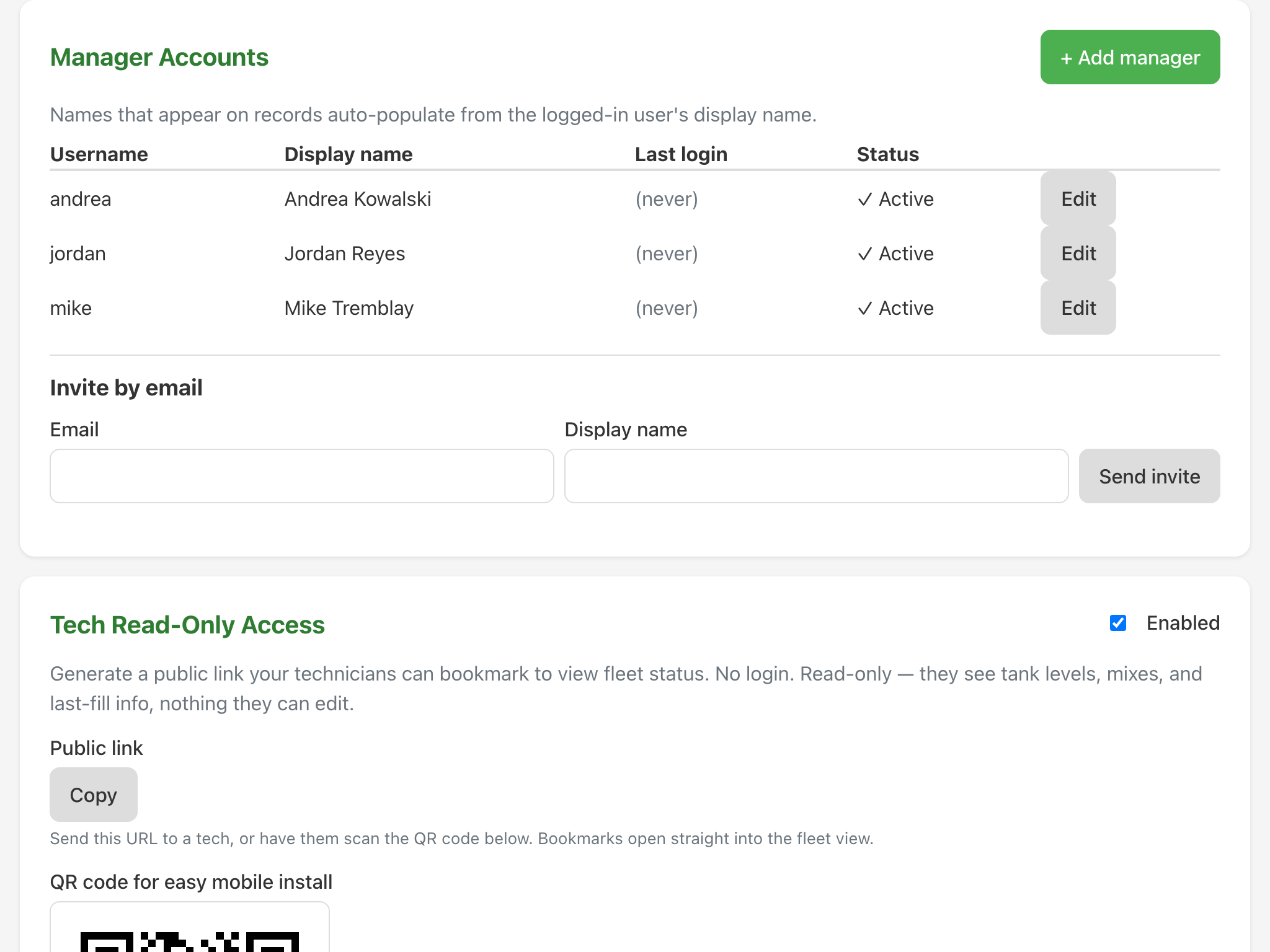
On the Team step of the setup guide, or in Settings, in Manager Accounts, under Invite by email: type the email address and the display name, press Send invite. They get a link, valid for seven days, which lets them pick their own username and password. Until they accept, they sit in the pending list with a Revoke button beside them.
The display name you type is the name that will appear on records, so write it the way the shop would say it.
Creating an account without an email
Press + Add manager and set the username, display name and password yourself. This is the one for the shop foreman who does not want email in the mix. Add an email address later if you want password resets to work for them, because the reset link has to go somewhere.
Editing and retiring people
Press Edit on a row to change a display name, add an email, set a new password or untick Active. An inactive account cannot sign in and keeps every record it ever made. You cannot deactivate or delete yourself, which is the guard that stops a workspace locking its owner out.
"Recorded by" on a shared iPad
The dock iPad stays signed in to one account all day, so the signed-in account tells you nothing about who did the work. That is what the Recorded by picker at the top of Daily Fill is for: it lists your managers' display names, and the name chosen there is what the fill is attributed to. It remembers the last choice, so a crew that runs in the same order most mornings taps it once.
The name lands in the record, in History, in the Fills CSV under recorded_by and on the void if one is ever needed. Make a habit of setting it before the first truck, and the question "who filled 14 on Tuesday" has an answer.
The read-only tech page
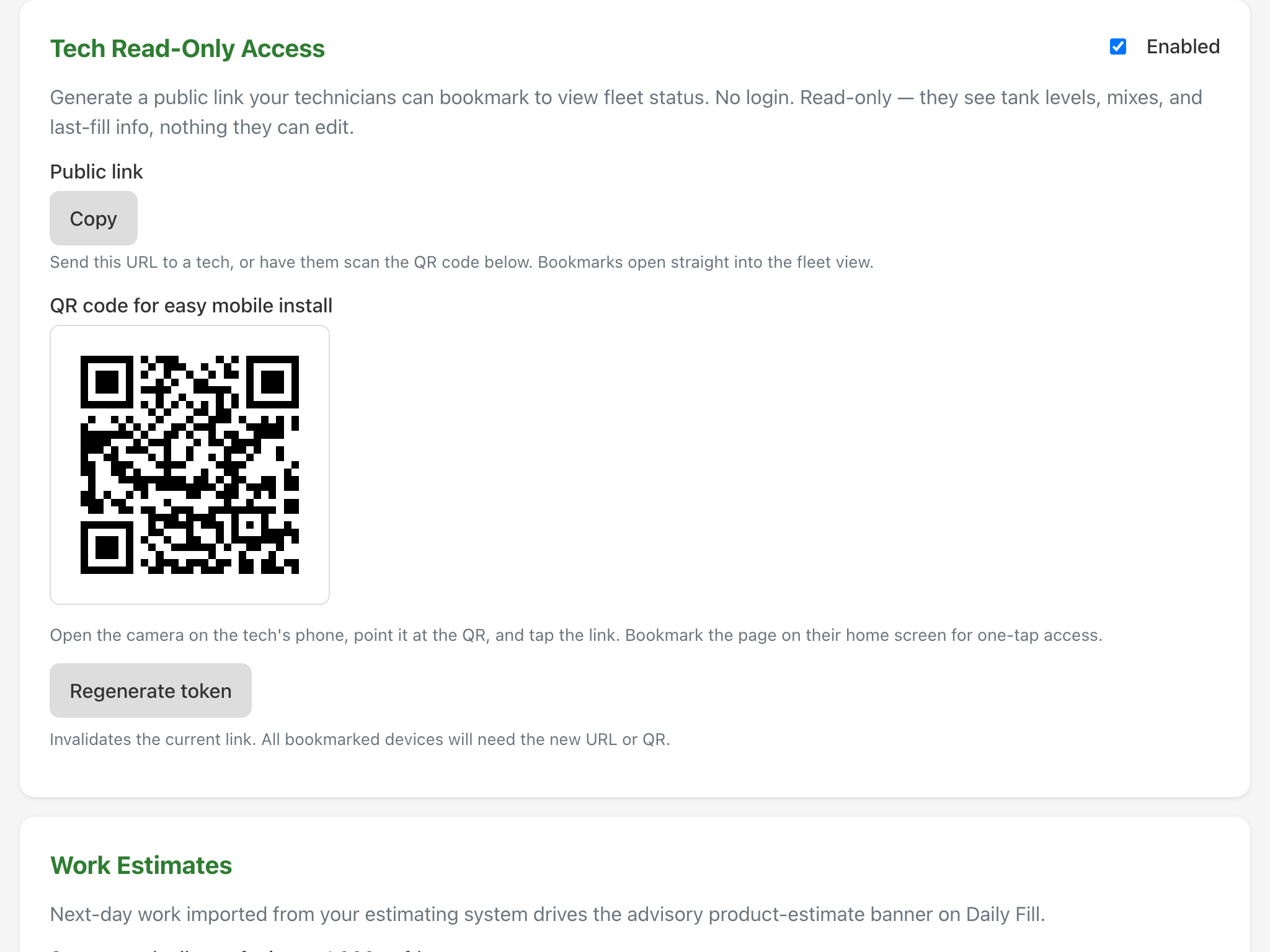
In Settings, in Tech Read-Only Access, flip the toggle on. You get a public link and a QR code. Anyone with either sees a single page of fleet status: every truck, every tank, the current level and the mix in it, with nothing to press and nothing to change.
That is the page for the technicians who need to know what is already in a truck before they take it out. No accounts to create, no passwords to reset, no seats to pay for.
Printing the QR for the shop wall
- Turn Tech Read-Only Access on.
- Print the page, or screenshot the QR block and print that at a decent size.
- Pin it where the trucks are loaded.
- A technician points a phone camera at it, taps the link, and can add the page to their own home screen for one tap after that.
The QR also appears on the iPad step of the setup guide once the toggle is on, which is the easiest place to grab it during setup.
Who can see that page
Treat the link as semi-public: anyone who has it can open it. It shows truck names, driver names, the mix currently in each tank, and when that tank was last filled and by whom. It shows no customers, no costs and no settings, and nothing on it can be changed.
If a printed sheet walks off, press Regenerate token. The old link stops working immediately, which also means every bookmark and every printed QR has to be replaced, so regenerate deliberately rather than casually. Turning the toggle off takes the page down altogether.