Products, mixes and rates
A product is a concentrate you pour into a tank. A mix is the set of products that go in together, which is what the crew picks at the dock. Between them sits the rate, and the rate is the reason the crew never has to do arithmetic on a wet clipboard.
What a rate per gallon means
Each product carries a rate: how much concentrate goes into one gallon of finished mix. Set it once, in the units you buy the product in, and Tank Tracker multiplies.
Say a liquid fertiliser is set to 0.05 L per gallon of mix and the crew puts 240 gallons into the front tank. The app shows 12 L of that product for that fill, because 0.05 multiplied by 240 is 12. Amounts are rounded to one decimal place. That is the whole calculation, and it runs for every product in the mix at the same time.
Two things follow from this. Your rate has to be per gallon of finished mix, not per acre and not per thousand square feet. And if you change a rate later, only fills recorded after the change use the new one; everything already in History keeps the amounts that were actually loaded.
Adding a product
On the Products step of the setup guide, or in Settings, in the Products card, press + Add Product:
- Name. Whatever the shop calls it. It shows on the fill screen, on the reports and in the CSV, so use the name the crew would recognise.
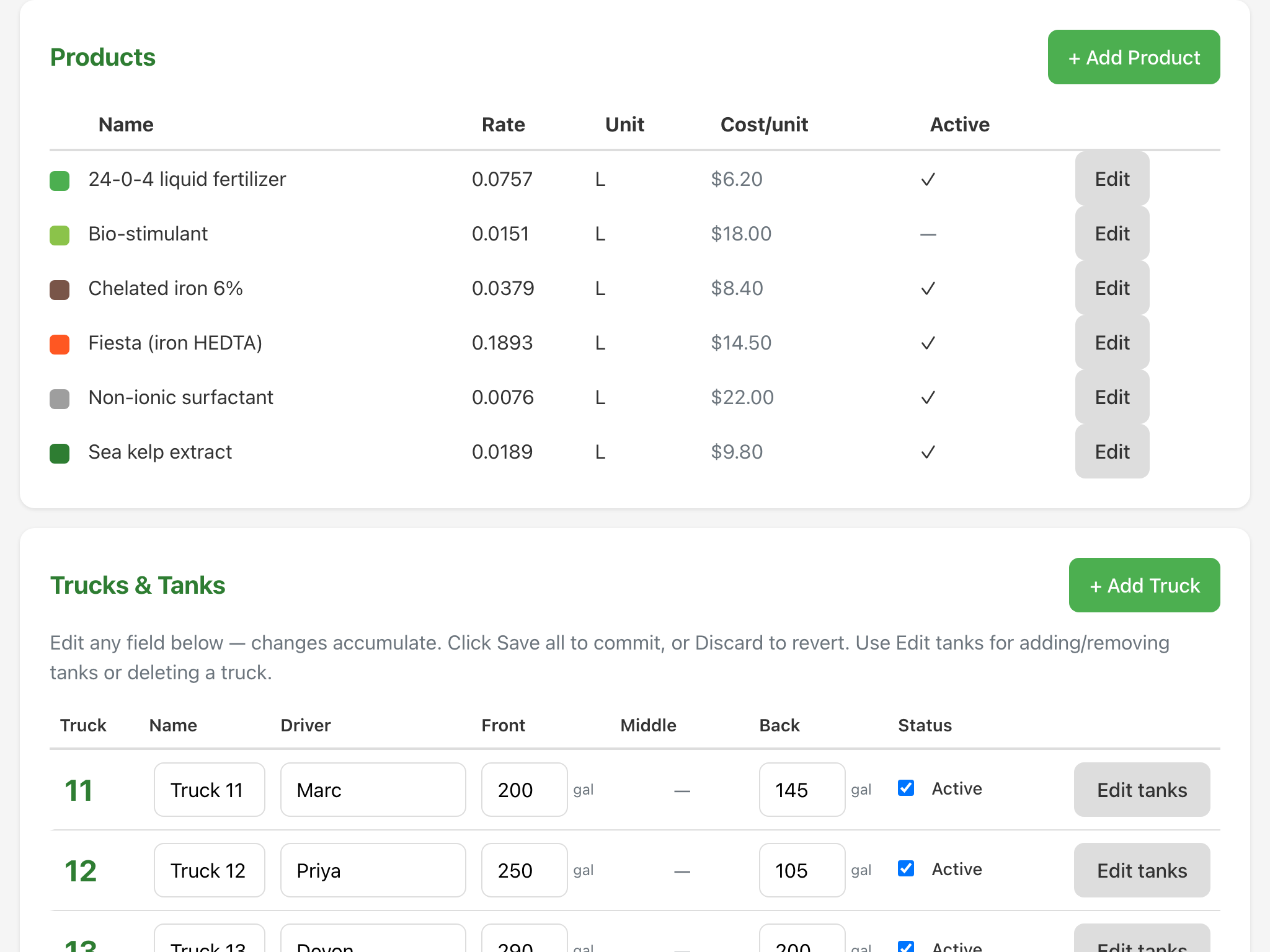
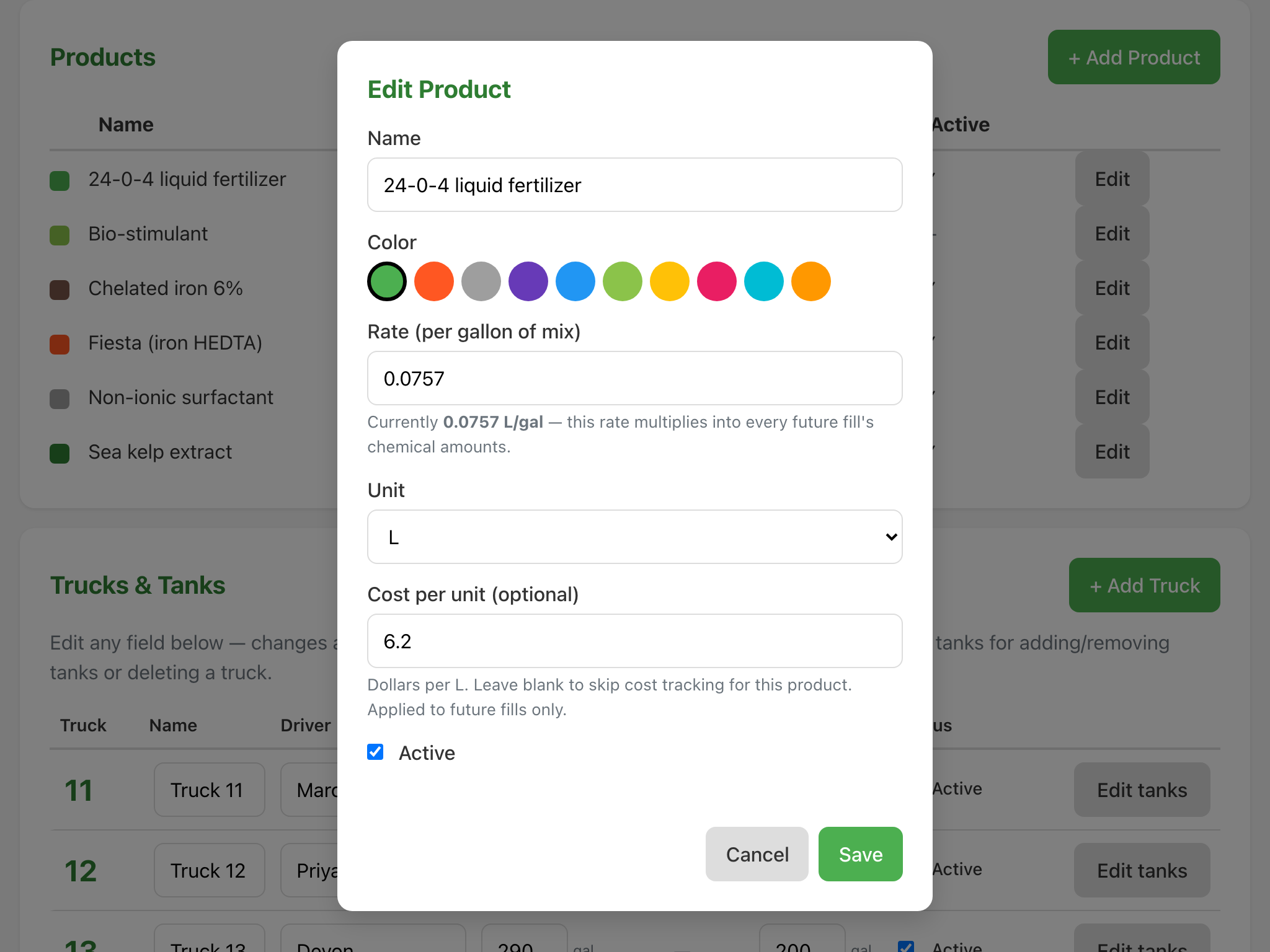
- Rate (per gallon of mix) and Unit. The units offered are L, ml, oz, fl oz, lb, g, kg, qt, pt and gal. Pick the one your jug is measured in.
- Cost per unit. Optional, and worth the thirty seconds. Enter what one unit of the concentrate costs you and every fill from then on carries its own material cost.
- A colour, used to tell the product apart in the charts, and an Active tick.
Changing a rate or a price
Press Edit on the product's row, change the number, press Save. The new rate applies from the next fill onward.
Because the cost per unit is captured on the fill, a price increase in July does not rewrite what June cost you. Your season totals are what you actually spent, in the order you actually spent it.
Retiring a product
Untick Active rather than deleting. An inactive product drops out of the pickers and out of new mixes, and every fill that used it keeps its record. There is no delete: unticking Active is the only way to retire a product, even one you added by mistake.
Building a mix
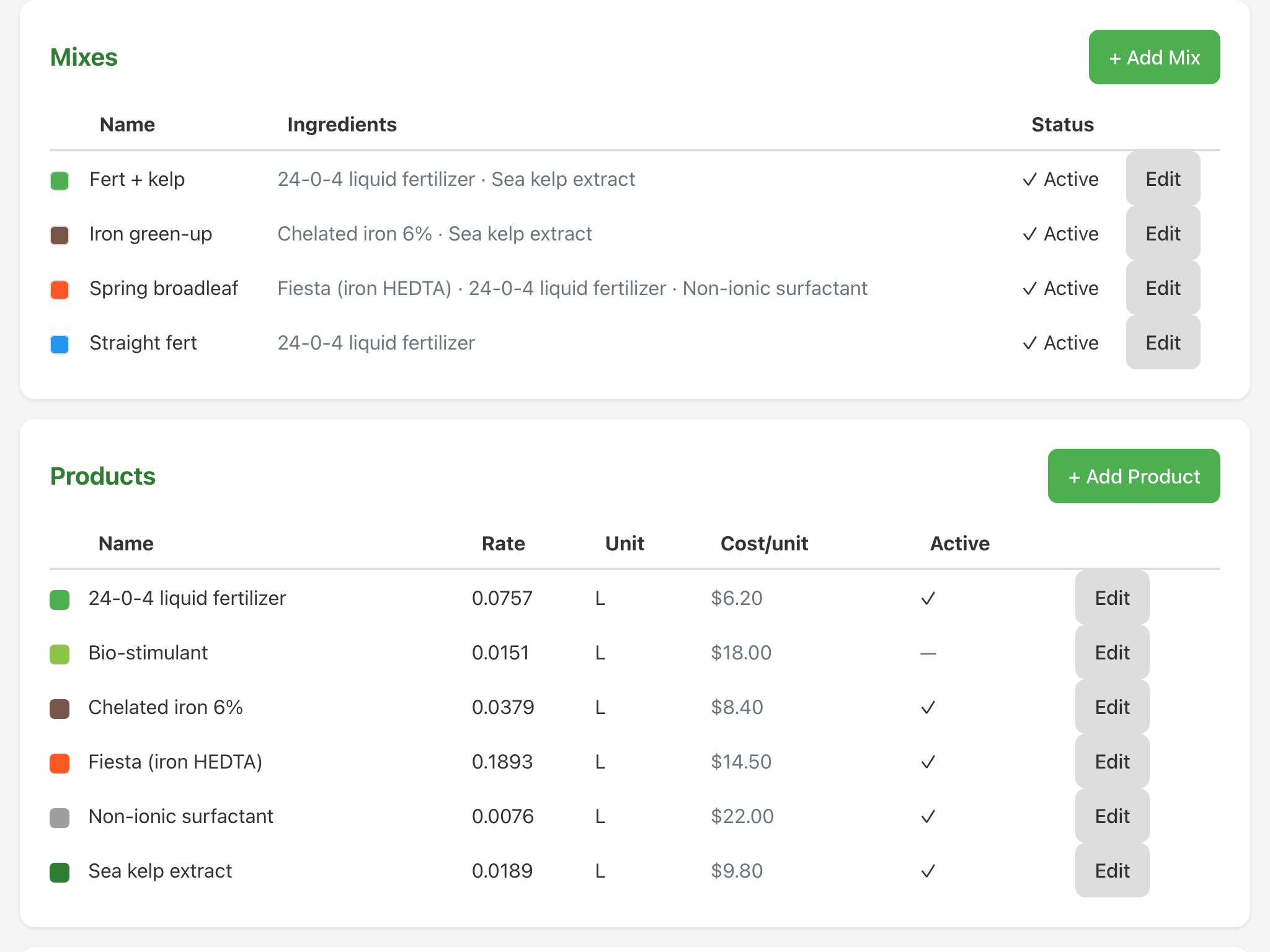
A mix is a name and a list of products. On the Mixes step, or in Settings, in the Mixes card, press + Add Mix, give it the name the crew uses out loud, tick its products, pick a colour and save.
Keep the names short and the list honest. "Spring broadleaf" with three products in it is the right shape; one mix per customer is not. Most fleets run four to six mixes across a season.
The colour is how a mix is recognised at a glance in Fleet Status, on the printed fleet snapshot, in History and in the reports.
What the crew sees
On the fill screen the crew picks a mix for the tank, and the app lists the products in it with the amount for the gallons being loaded. If one product is being left out today, the crew unticks it and the amounts update; the last remaining product cannot be unticked, because a mix with nothing in it is not a fill. The omitted product is recorded as omitted, so the record still matches the tank.
Editing a mix that is in use
Editing a mix changes what the next fill loads. Past fills keep the products and amounts they had. A mix that active fills refer to cannot be deleted, which is deliberate; untick Active instead and it leaves the pickers while its history stays readable.