Set up your fleet
Your fleet is the one thing Tank Tracker cannot work out for itself. Every fill is attached to a truck and a tank, and every "how much do I need" number comes from the tank's capacity, so this is the step worth getting right. Everything else can be edited later without consequence.
Where it lives
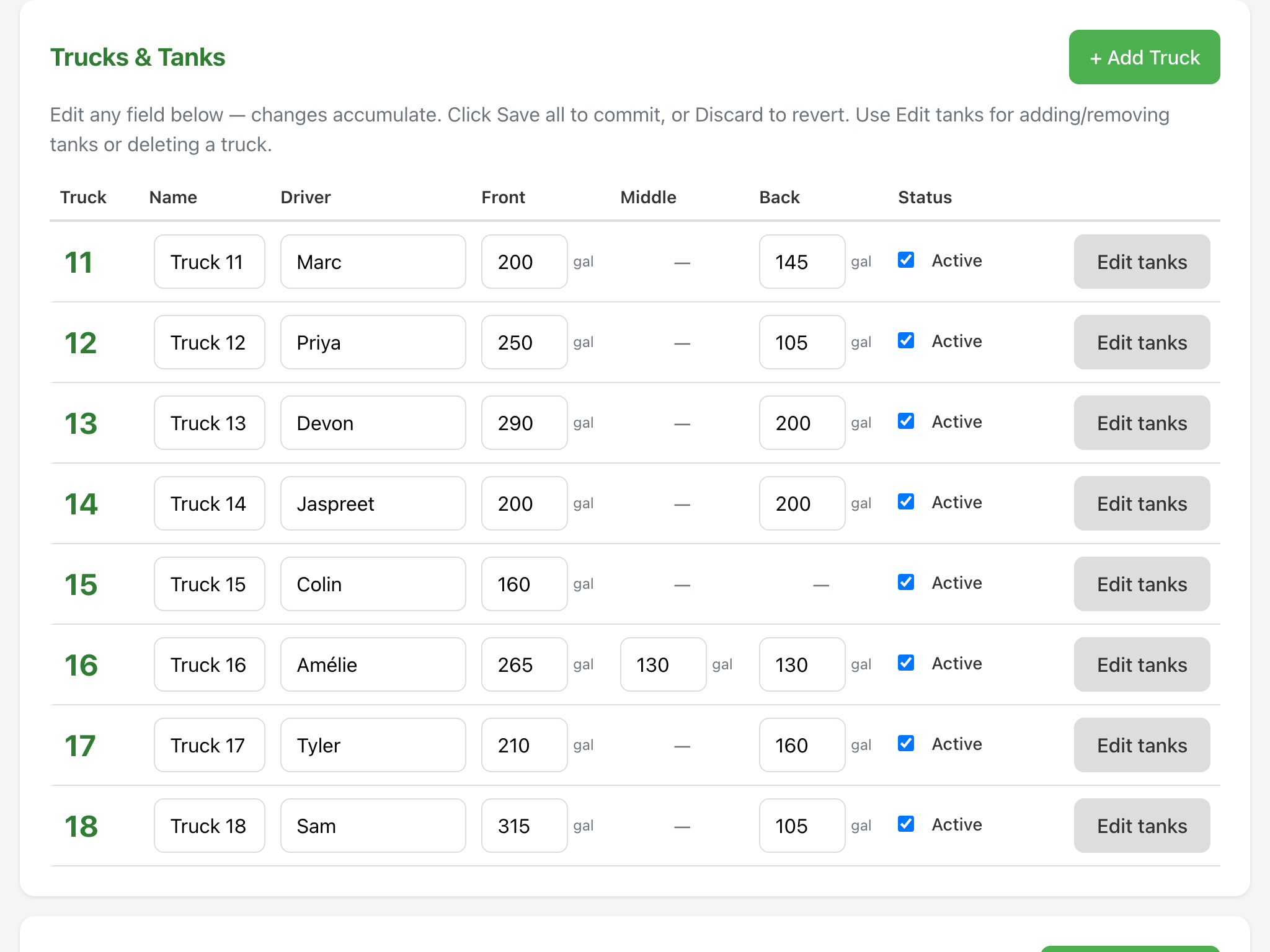
The setup guide opens by itself the first time you sign in, and the Fleet step is the second screen. If you closed it, go to Settings and press Setup guide at the top right to reopen it at any point. You can also work directly in Settings, in the Trucks & Tanks card, which is the same data without the guided wrapper.
What a truck needs
- A number. Use the number painted on the door. It is what the crew looks for in the picker at the dock, and it is what shows on every report. Numbers have to be unique within your workspace.
- A driver, if you want one. Optional, and only a label. It appears beside the truck number in the picker so the person at the dock can find "Devon's truck" without memorising the fleet numbers. Change it whenever the assignment changes; old records keep the name that was on them.
- One tank for each tank on the truck, with a position and a capacity in gallons. Positions are front, middle and back. Most trucks have two. A capacity of 0 means there is no tank in that position.
Capacities are in gallons today. Litres are on the list and will not change the records you have already made.
Adding the whole fleet at once
If your trucks are numbered in a run and share a tank layout, use Add several at once on the Fleet step. Fill in how many, the first number, and the front and back capacities, then press Add trucks. Tank Tracker creates that many trucks counting up from the first number, skipping any number already in use, and gives each one the two tanks you specified. It skips rather than substitutes, so a number already in use costs you one truck: ask for 20 starting at 1 and already have truck 7, and you get 19 trucks, not 20. Leave a capacity at 0 to skip that tank entirely.
A twenty-truck fleet with 300 gallon front tanks and 200 gallon back tanks is one press. Then fix up the exceptions one at a time.
Adding one truck
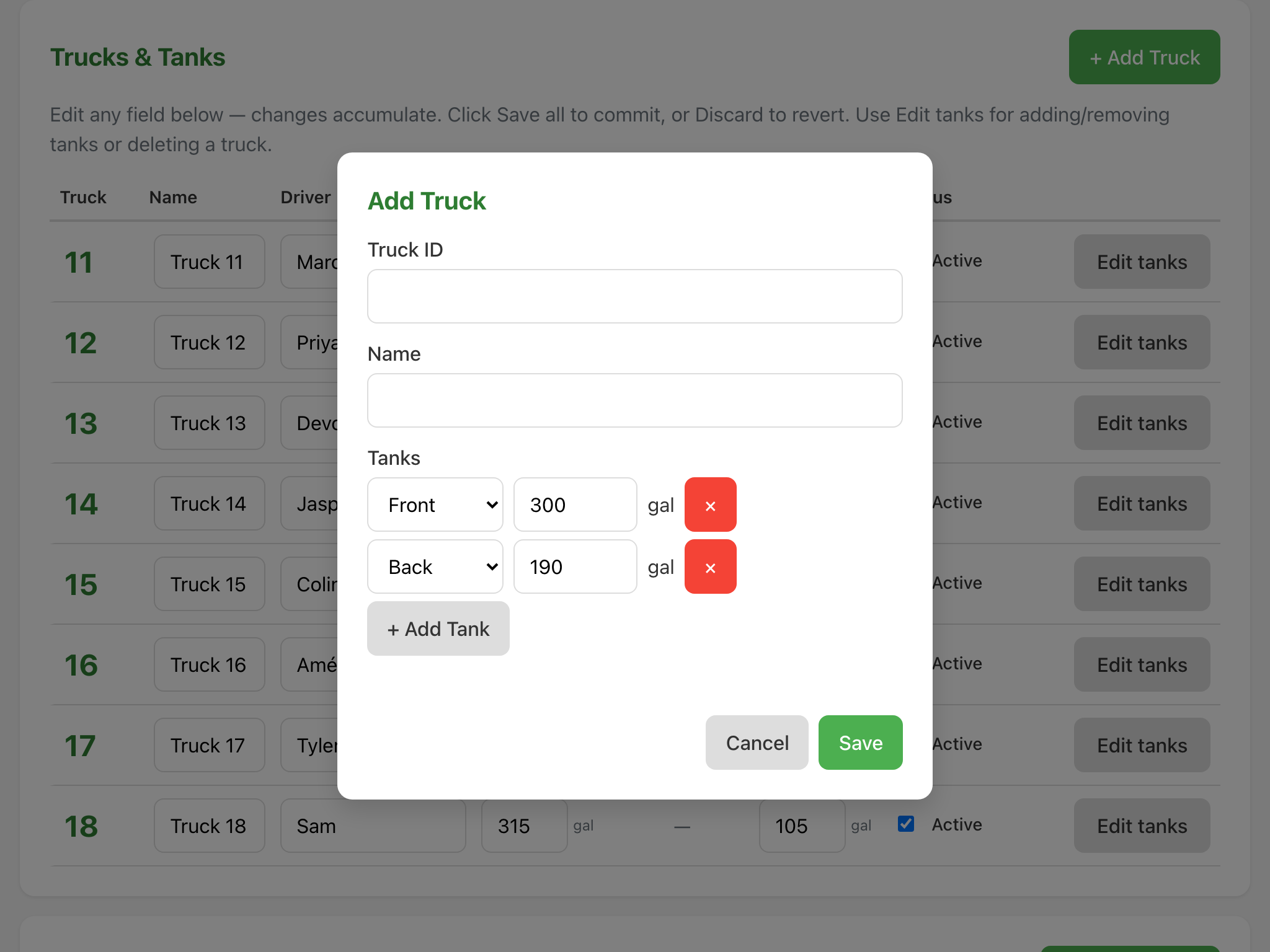
The setup guide's own Fleet step has an Add one truck form with a driver field and fixed front, middle and back capacities, for anything that does not match the bulk pattern: a three-tank truck, a 600 gallon single, a spare that only comes out in August. Outside the guide, in Settings, in Trucks & Tanks, press Add Truck instead: enter the truck ID and name, then add a row for each tank with its own position and capacity, pressing + Add Tank for as many as the truck actually has, and press Save.
Changing a truck later
In Settings, in Trucks & Tanks:
- Name, driver and active are edited inline on the row. Make several changes, then press Save all; Discard throws the unsaved ones away.
- Tanks are added and removed behind Edit tanks on the row.
- Retiring a truck: untick its active box rather than deleting it. An inactive truck disappears from the dock picker and from the fleet views, and every fill it ever recorded stays in History and in your reports. Pressing Delete truck in the truck's Edit Tanks dialog does the same thing under the hood: it deactivates the truck and keeps its fill records rather than removing anything.
Changing a capacity changes what the app suggests for future fills. It does not rewrite anything already recorded: a fill keeps the gallons that were actually put in.
What good looks like
You are done when every truck that will see a spray day this season is in the list, each with the tanks it really has and a capacity that matches the tank, and nothing is left active that you do not run. Then the dock picker is short and fast.